
Recording keywords
Keyword arguments
Turn a recorded value, part of it or part of a selector into an argument while you record — with or without a default, and everywhere it occurs.
A keyword that always creates the account jane@example.com is useful once.
Make the name and the password arguments while you record, and the same
keyword creates any account. Values in the toolbar that can become an argument
are underlined; click one.
jane becomes ${name}, Secret-123 becomes ${password}, each in both fields.
The argument dialog
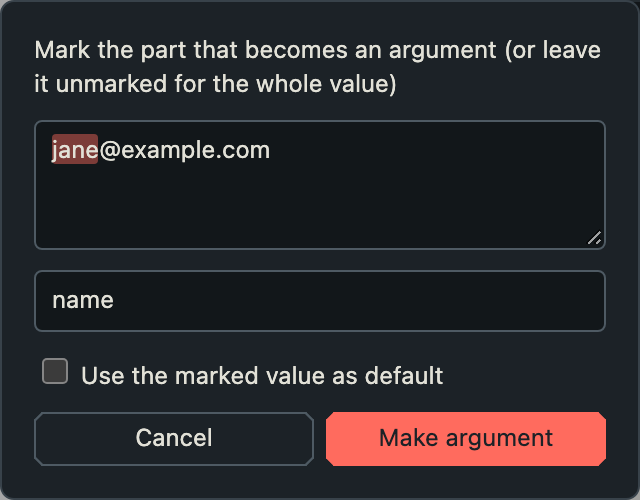
Only the marked part, jane, becomes the argument ${name}, without a default.
Clicking a value opens a dialog with three things to decide:
- Which part. The value is shown in full. Leave it unmarked to turn the
whole value into the argument, as with the password, or mark a part of it —
only that part becomes the argument, as
janein the address. The marked part stays highlighted when you move on to the name. - The name, as
nameor as${name}. - Whether the recorded value becomes the default. Checked, callers may leave the argument out; unchecked, they must pass it. A new account needs a new name and nobody wants a password built into a keyword, so both are unchecked here.
Make argument applies it. A name the recorder cannot accept is shown in the dialog, which stays open so you can correct it; Cancel, Escape or a click beside the dialog close it without changes.
Arguments without a default always come first, as Robot Framework requires. Give
a default only to arguments recorded after all those without one, and
[Arguments] keeps the order of the recording.
Part of a value
Marking a part is how addresses, URLs, IDs and composed texts become arguments.
The rest of the value stays as it was — here @example.com — escaped where
Robot Framework needs it:
A value that already contains an argument cannot get a second one.
Selectors
Selectors can become arguments too — whole, or in part. That turns one recorded click into a keyword for a whole family of elements:
The chapter name inside the selector becomes ${chapter}.
Mark only the part that varies. The structure around it — role=link,
[name=…], the s that makes the match exact — is what keeps the selector
precise.
The same value elsewhere
When the value you made an argument occurs in other Keyword Calls of the same keyword, the toolbar offers to use the argument there too. Each occurrence is listed with a checkbox, all checked: Replace uses the argument for the checked ones, Skip leaves them as they are.
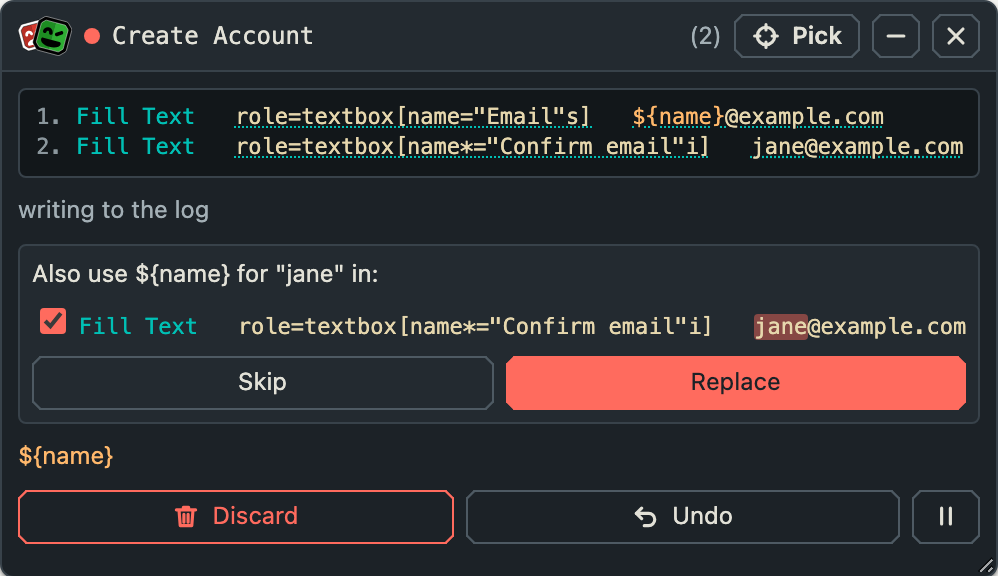
jane also occurs in the confirmed address; the occurrence is offered, already checked, with the part it replaces marked.
That is how both email fields and both password fields of Create Account get
the same argument: one argument per value, replaced in every field that repeats it.
While you keep typing
Make an argument from a field you are still typing into, and the argument
stays: the Keyword Call keeps ${name}, and its default follows what you type.
Undo removes an action together with any argument that only it used — a
recorded keyword never declares an argument it does not use.
Names
An argument name is plain — name — or written as a variable — ${name}.
It must:
- start with a letter or
_and contain only letters, digits and_; - not be a Robot Framework built-in variable such as
${TEMPDIR}or${SPACE}; - not be taken already in the keyword, in any spelling Robot Framework treats as
equal —
Name,na_meandnameare one name. Variables the recorder assigns itself, like${download}and${upload}, count too; - be at most 200 characters long.
The dialog checks while you type and again when you confirm.