Recording keywords
The recorder toolbar
Name and start keywords, save, undo and discard them, end the session, and keep the toolbar out of the page's way.
The toolbar is how you talk to the recorder: it shows the keyword being recorded and every Keyword Call in it, and its buttons start, save, correct and end the recording. It sits on top of every page of the browser context and follows you through navigation and new tabs.
Record Keywords: two keywords in one session, a mistake undone, and the
minimized toolbar's Start and Save.
Reading the toolbar
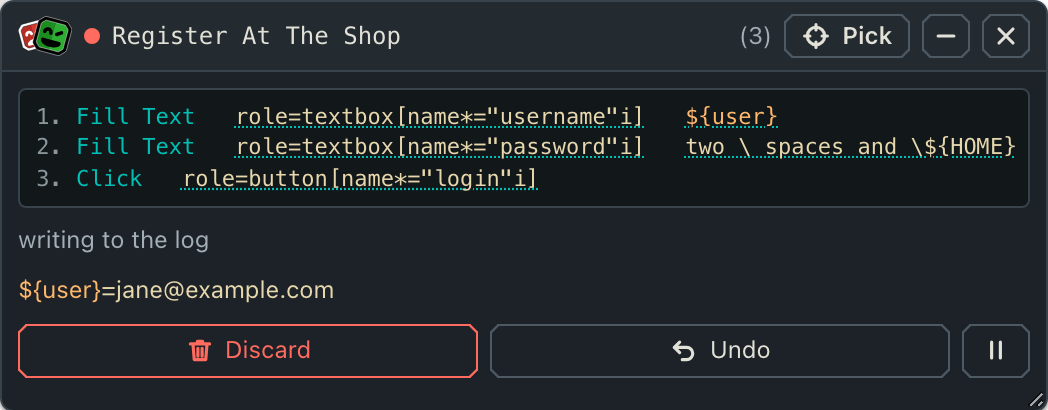
The header names the keyword being recorded and counts its Keyword Calls.
The list shows each Keyword Call as it is written into the file, coloured like
Robot Framework source: keywords in teal, values in beige, variables
in orange — Keyword Arguments and an assigned ${download}.
An escaped value stays a value: \${HOME} and the escaped spaces in two \ spaces
are beige, because Robot reads them as text. Underlined values can become arguments; the
arguments of the keyword are listed below the calls.
A session, step by step
Record Keywords opens the toolbar idle: nothing you do is recorded. Move to
where the first keyword should begin, then:
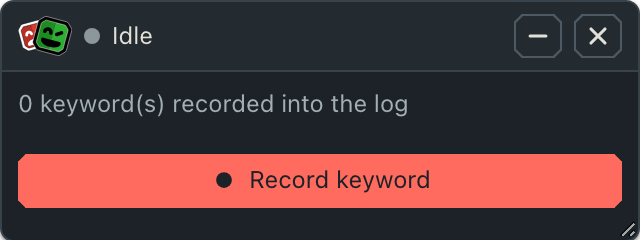
Idle: nothing is recorded until Record keyword.
- Record keyword asks for the name. Type it and press Enter. The dialog stays open, dimmed, until the recorder has accepted the name; a name it rejects is shown in the dialog with the reason, so you can correct it.
- Work in the page. Every action appears in the toolbar as a Keyword Call and is written to the file at once.
- Save stores the keyword and returns to idle. Navigate to the next starting point and begin again with step 1.
- ✕ in the header ends the session. A keyword still being recorded is saved first; the test continues with the next line.
Record Keyword skips step 1 — the name comes from the call — and records from
the first moment; Save or ✕ saves the keyword and ends the session.
The buttons
| Button | Where | Does |
|---|---|---|
| Record keyword | Body, idle | Names and starts the next keyword. Record Keywords only. |
| Save ✓ | Body, recording | Saves the keyword. Record Keywords returns to idle; Record Keyword ends the session. |
| Undo | Body, recording | Removes the Keyword Calls of the last action — all of them, for an action that produced several, like a download. |
| ⏸ / ▶ Resume | Body, recording | Pauses the recording: nothing you do is recorded until Resume. Use it to set something up by hand in the middle of a keyword. |
| Discard | Body, recording | Drops the keyword, also from the file. Record Keyword starts it again empty; Record Keywords returns to idle. |
| Pick | Header, recording | Picks an element on the page and adds its selector to the keyword as a comment — see Picking a selector. |
| – / + | Header | Minimizes the toolbar to its header, or expands it. |
| Start / Save | Header, minimized | The main action stays one click away while the toolbar is small. Start is for Record Keywords only. |
| ✕ | Header | Ends the session. The keyword being recorded is saved. |
Every button has a tooltip. After Save, Discard, Start, Pause and Resume the toolbar waits a moment before it acts: Playwright reports a click half a second late, and a click made just before Save still belongs to the keyword. If you have not clicked in the page for a second, there is no wait.
Pause and Resume
⏸ stops recording without ending the keyword: nothing you do is recorded until ▶ Resume. Use it to set something up by hand — accept a cookie banner, open a menu, log in with a real account — in the middle of a keyword. The header says paused, and the indicator turns orange.
Typed while paused, the password never reaches the keyword.
A click made just before Pause still belongs to the keyword; one made just before Resume does not.
Undo and Discard
Undo takes back the last action, as often as you like. It removes Keyword Calls; it does not reverse what the action did to the page. After undoing a click that navigated, you are still on the new page — continue from there, or go back, and check that the toolbar lists what you expect before you go on.
Discard throws the whole keyword away. In Record Keywords the session goes on,
idle, so you can start the keyword again from a better starting point.
Picking a selector
Some selectors are not for a click: an element the keyword should check or wait for later. Pick gets one without leaving the recording. The Keyword Calls make way for the panel of Record Selector — Playwright's or a CSS selector, editable, with its count on the page — and nothing you do is recorded while it is open.
- Use adds the selector to the keyword as a comment, ready for the line you write by hand later. Undo removes it like a Keyword Call.
- Cancel returns to recording without it.
Recording goes on either way. The pick works in the tab whose toolbar you pressed it in. Playwright's own Pick locator opens the same panel, in the tab you last clicked in; while the toolbar is idle, it asks you to start a keyword first. Minimized, the header offers Reselect and Use once an element is picked and Cancel throughout; Save, Discard, Undo and Pause wait until the pick is used or cancelled.
Naming keywords
A name is rejected — in the dialog, with the reason — when it:
- already exists in the target file, or was recorded earlier in the session;
- would shadow a keyword the suite can already call, such as
Clickor a keyword of one of your resources; - cannot be a single Robot Framework name: two spaces in a row, a leading
#,*or|, variable syntax like${x}, line breaks or tabs, or more than 200 characters.
Name keywords after what they do for the test — Add Product To Cart,
Open The Assertions Guide — not after the page they happen on.
Ending a session
| What ends it | The keyword being recorded |
|---|---|
✕ in the toolbar, or Save in Record Keyword | Saved |
| Playwright's Record button (the red circle at the top centre) | Saved |
No action and no toolbar command for idle_timeout (default 5 minutes) | Saved |
| All pages of the context closed, or the context itself | Saved |
| An error | Saved, then the keyword fails |
A keyword without any Keyword Call is never written. The idle timeout keeps a
forgotten recording from blocking a run for good; set it with
idle_timeout=15 min, or to ${None} to wait without limit.
Keeping it out of the way
- Move the toolbar by dragging its header. It stays where you put it, also across navigation and reloads, and sits flush against any edge you push it to.
- Resize it with the grip in its bottom right corner; by default it grows with the longest Keyword Call.
- Minimize it with –; the header then offers Start or Save, so the main action stays one click away.

Minimized and idle: Start names the next keyword.
Typing in the toolbar never reaches the page: its shortcuts and type-ahead do not fire while you name a keyword. Nor is anything you do in the toolbar recorded — a resize released over the page, or keys pressed after a click on the toolbar's text. A modal dialog of the page — one that disables clicks outside itself, traps the focus or closes on a click outside — does not block the toolbar either, and using the toolbar does not close it.
Next to Playwright's toolbar
During a session you also see Playwright's own toolbar at the top centre of the page. It cannot be hidden, and two of its tools are useful:
- the assertion tools (eye, text, value, snapshot) record checks — see Assertions;
- its Record button ends the session, like ✕.
Its Pick locator opens the toolbar's own picker — see Picking a selector.